Oekaki Embroidery
Digitize designs as you draw
About Oekaki Embroidery
An iPad app that turns the lines you draw into data your embroidery machine can stitch. There's no digitizing software to learn first. Draw with your finger or Apple Pencil, and each line turns straight into stitches. Export your design in DST or PES format and send it to your embroidery machine.
Place a photo as a sketch and trace over it, rearrange the sewing order, and check how the design will look stitched on fabric. All the preparation for embroidery, with the feel of drawing on paper.
Who It's For
Embroider a face on a plush toy
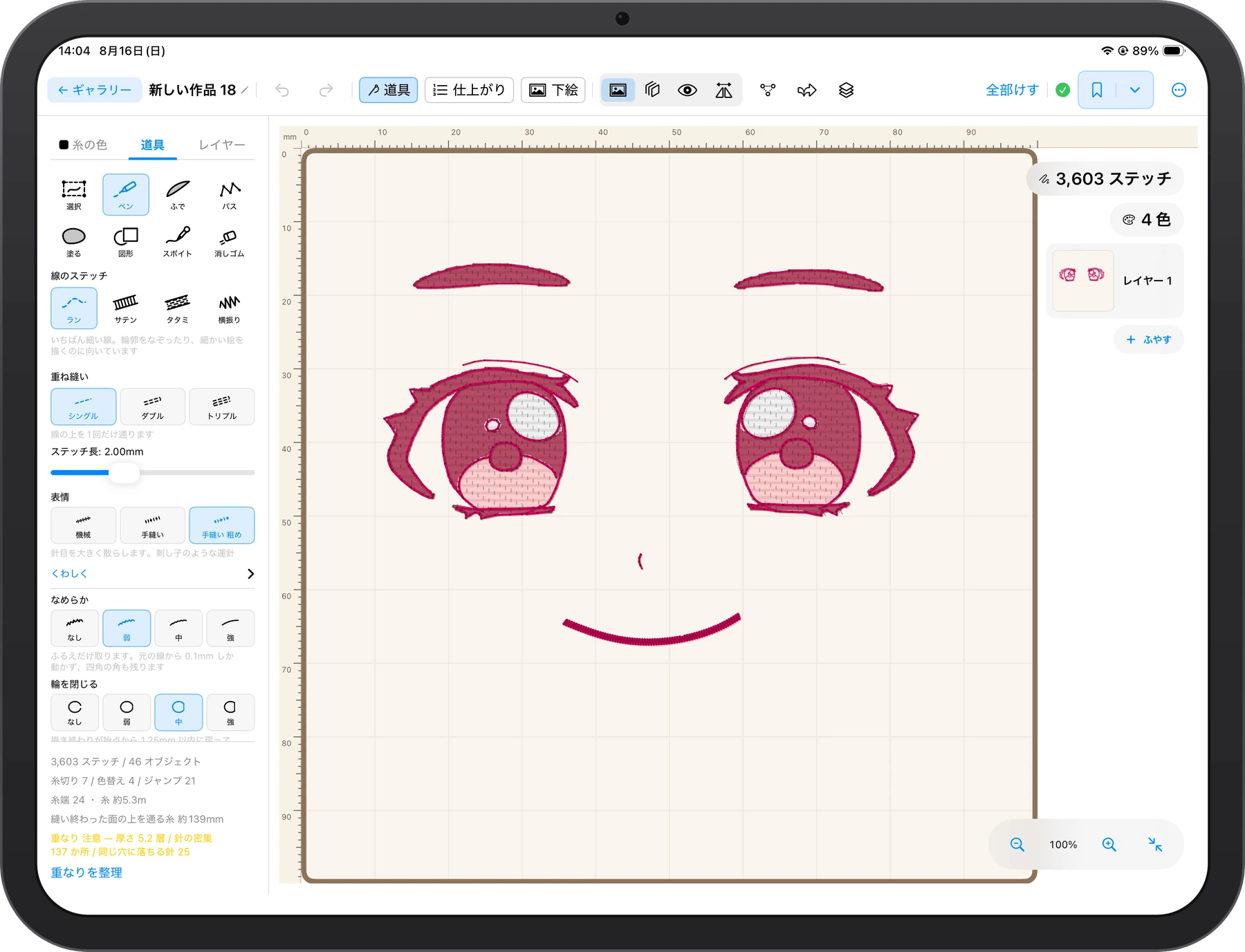
Draw the eyes, eyebrows, and mouth, and they become data ready to stitch. Choose running stitch for thin lines and tatami for areas like cheeks or the whites of the eyes, so even a small face keeps its shape.
Turn a hand-drawn illustration into embroidery
Take a photo of a drawing on paper, place it as a sketch, and trace over it. The energy and wobble of your lines carry straight into the stitches.
Keep a child's drawing in lasting form
Trace the lines a child can only draw at that age and turn them into data. Stitch them onto a drawstring bag or a handkerchief, and the drawing goes wherever you go.
Add handwritten letters or names
Embroider lettering in the shape of your own handwriting, which no font can give you. For name labels when a child starts school, or a short message on a gift.
You have an embroidery machine, but making designs is where you get stuck
There's no digitizing software to learn. Draw with your finger or Apple Pencil, and it becomes data. Export in DST or PES format, or send designs directly to supported Brother machines connected to the same network.
Check the result before you sew
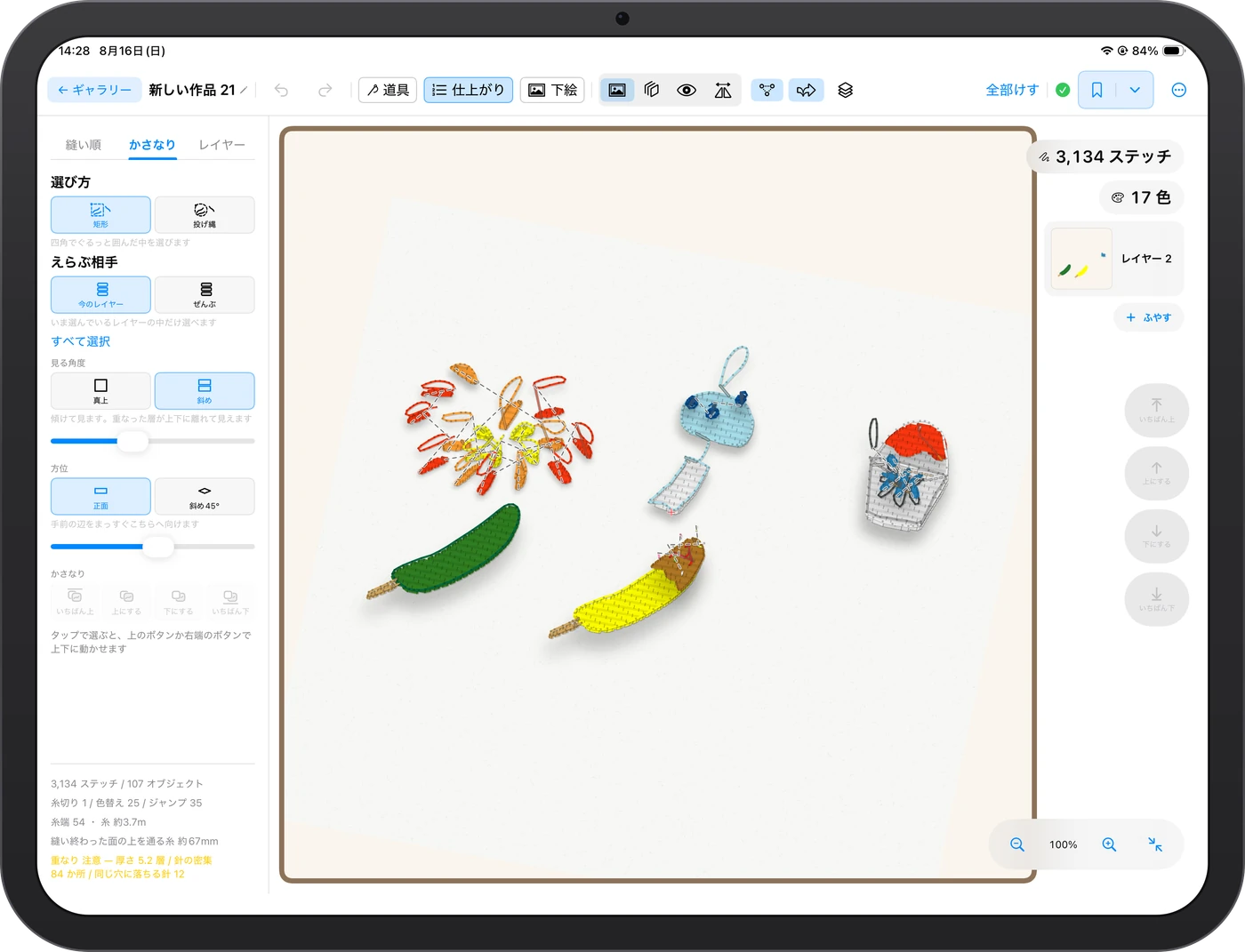
See the design as it will look stitched on fabric, with a warning wherever thread piles up thick. Find what you want to fix before you do a test stitch-out.
What You Can Do
Draw
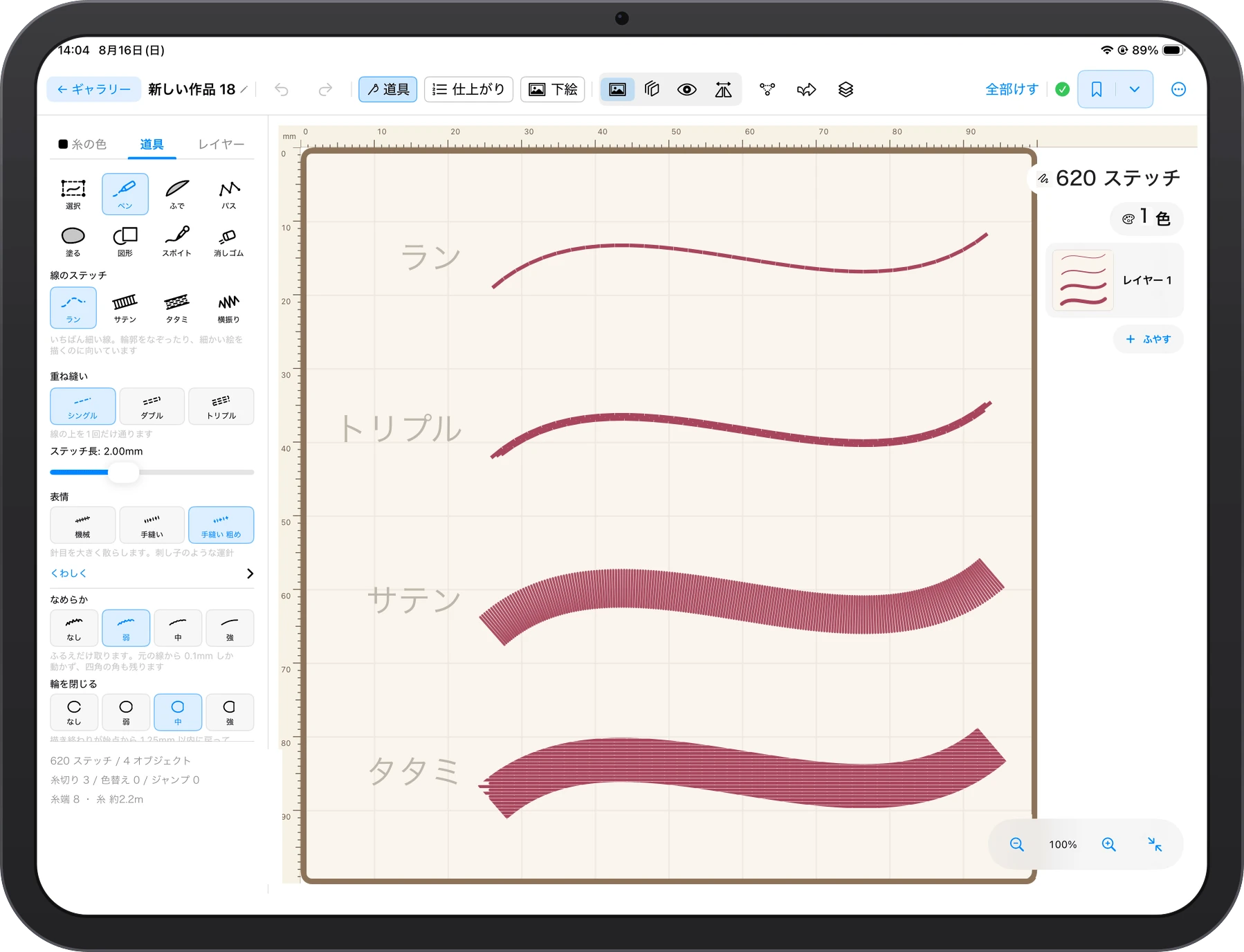
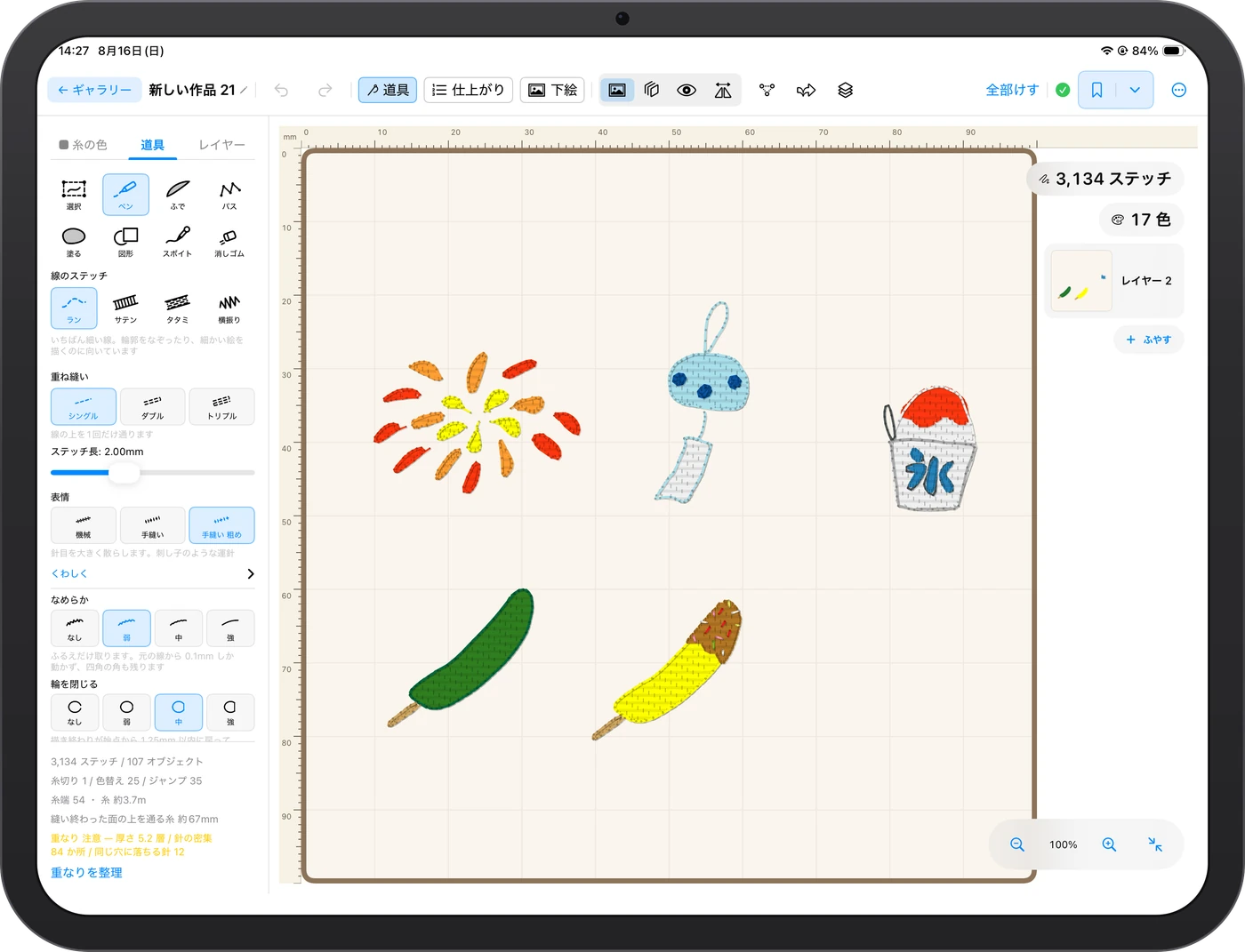
Draw lines with the Pen and fill areas with the Brush. Lines can be stitched three ways: running stitch, satin, and tatami, and running stitch can be made a bold “Triple” line. Thread comes in 71 Brother Ultra POS colors, with Fujix King Star and Pearl Yacht thread numbers available too.
Place a Sketch
Place a photo or illustration in the hoop and trace over it. The sketch is never stitched, and it doesn't appear in exported data.
Plan the Sewing Order
The app shows you how many trims, color changes, and jumps the design has. The app sets the order automatically, for fewer trims and less travel. Dragging rows to reorder them by hand is a Pro License tool.
Preview the Result
See the design as it will look stitched on fabric. A color-coded view (Pro License) warns you where thread piles up thick. You can also play back the stitching, one stitch at a time.
Export
Export in DST (Tajima) and PES (Brother) formats. Exports go through the Files app, so you can save to iCloud Drive or a USB drive. You can also send designs directly to supported Brother machines connected to the same network, without exporting.
Work With Apple Pencil
Choose “Finger Only” or “Apple Pencil Only.” With “Apple Pencil Only,” a hand resting on the screen won't disturb a line you're drawing.
A Look at the Screens
Choose Thread Colors
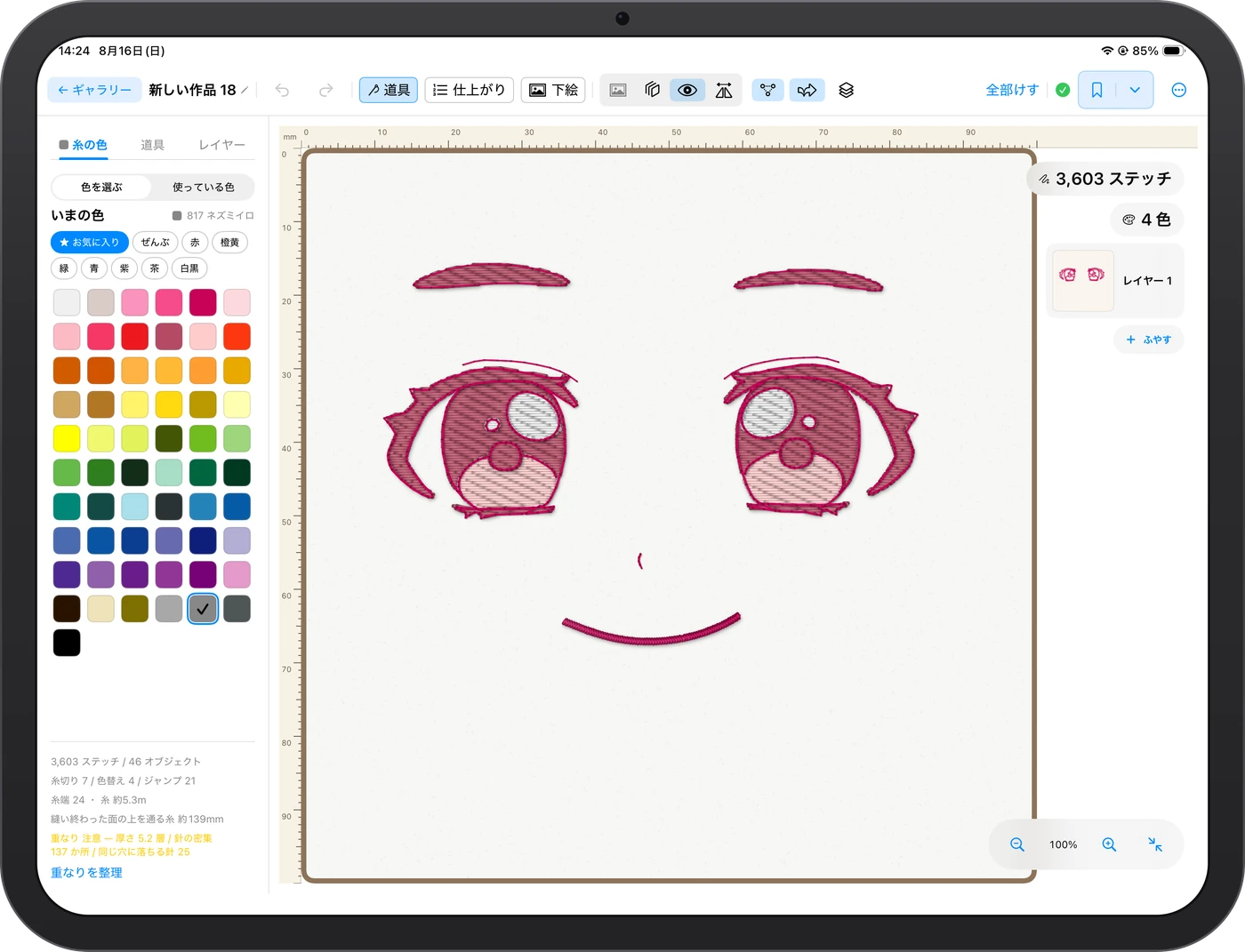
Thread comes in 71 Brother Ultra POS colors, with Fujix King Star and Pearl Yacht thread numbers available too. Colors are listed by number and name. Narrow them down by color family (red, orange and yellow, green, blue, purple, brown, and black and white) or by favorites. You can also show only the colors used in the current artwork.
Plan the Sewing Order
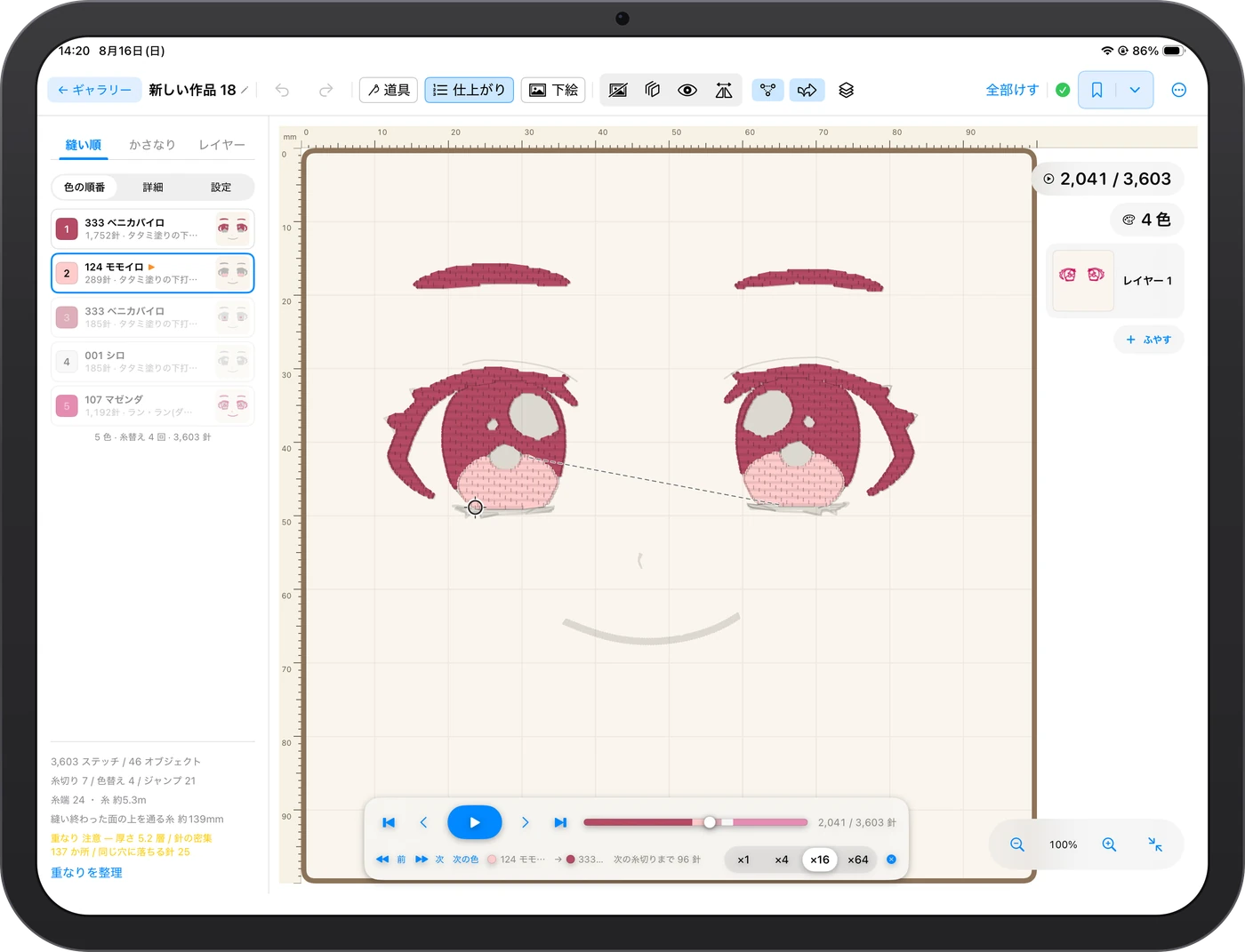
The sewing order and stitch count for each color are listed. The app sets the order automatically (dragging rows to swap them by hand is a Pro License tool). The bar at the bottom plays back the stitching one stitch at a time, at speeds from ×1 to ×64.
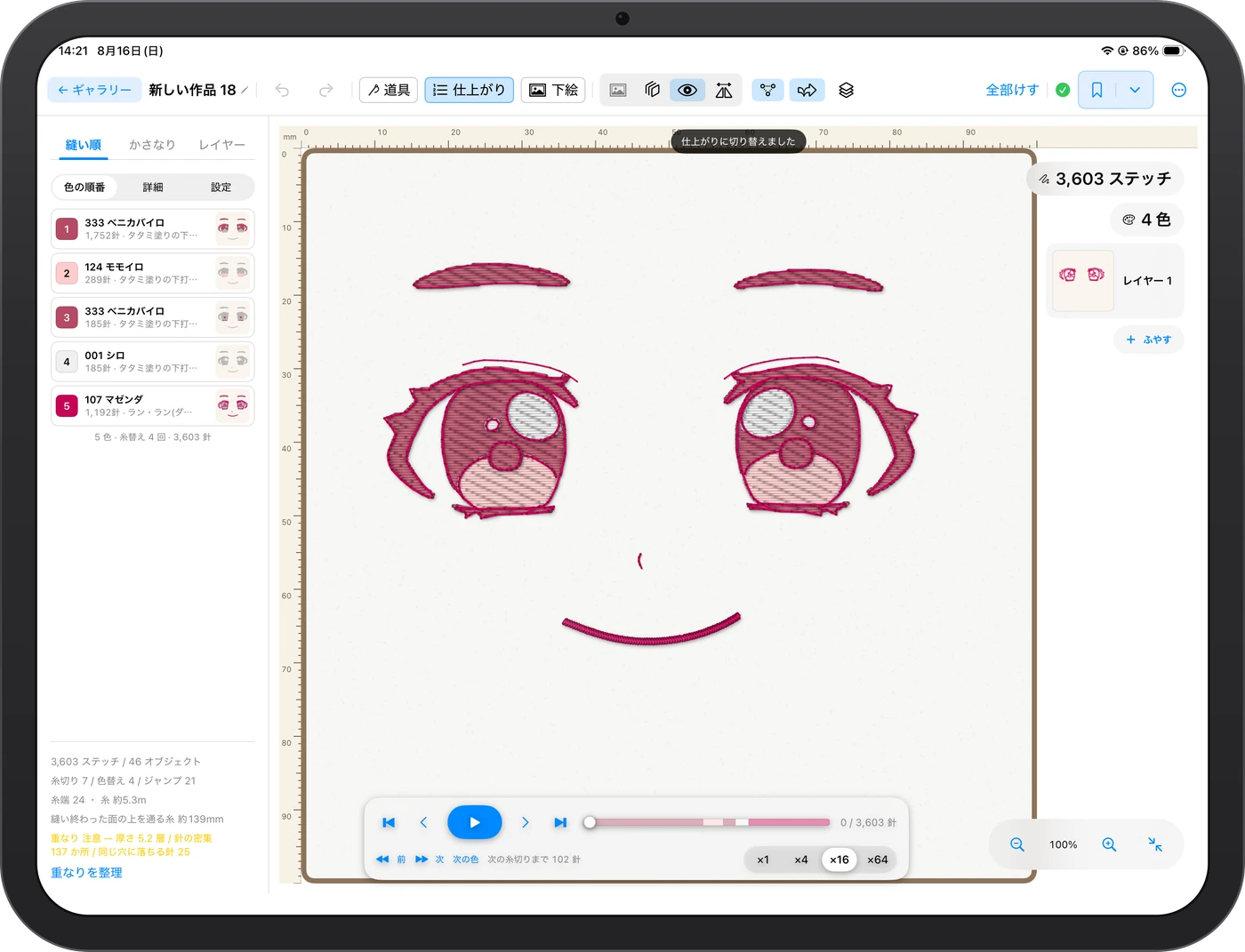
Preview the Result
See the design as it will look stitched on fabric. The sheen and thickness of the thread come through, so you can get a feel for the finished piece before it goes on the machine.
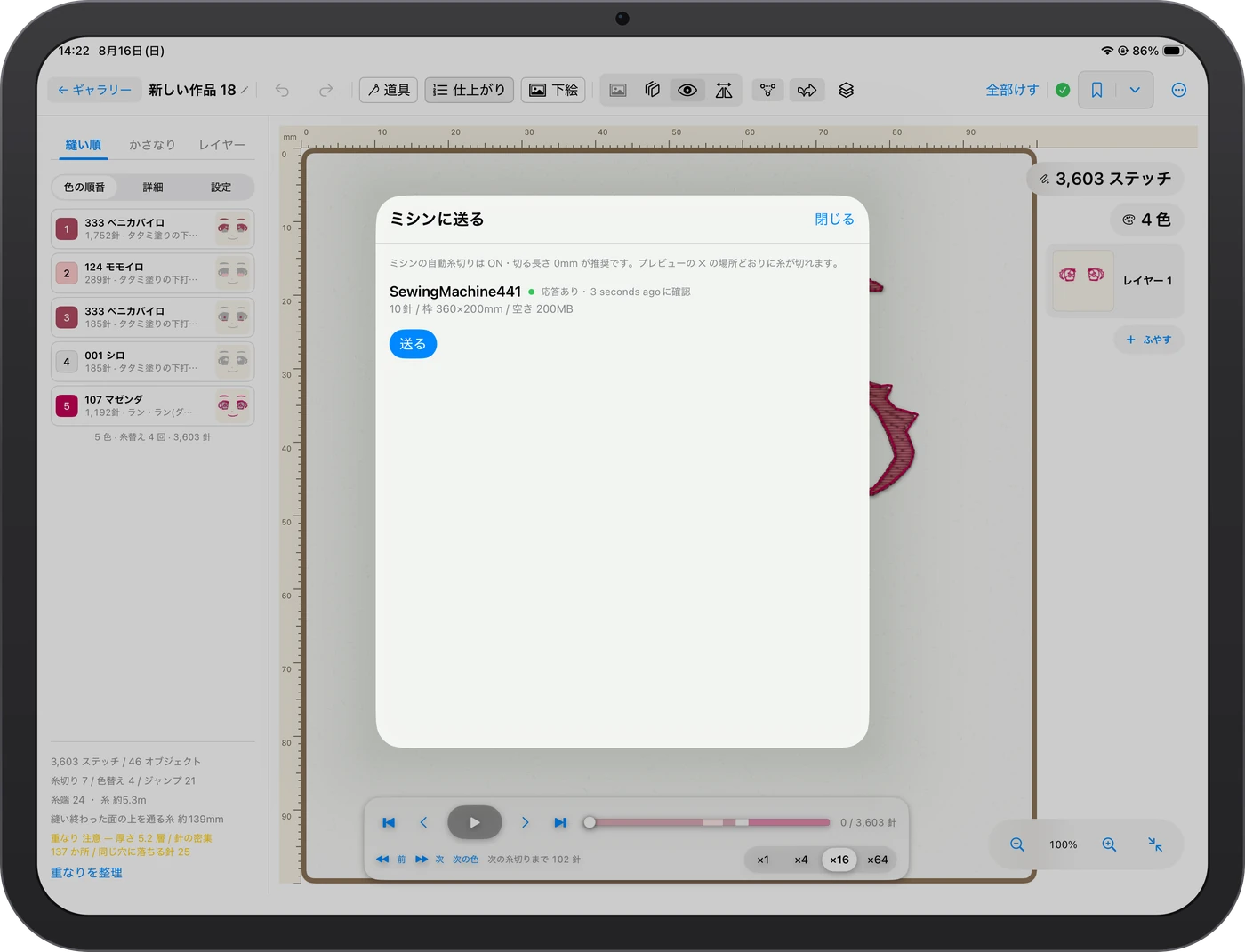
Send to Machine
Send designs directly to supported Brother machines connected to the same network, without exporting a file. You can check the machine's hoop size and free space before you send.
Requirements
- •iPad only. iPadOS 17.0 or later
- •Used in landscape orientation
- •The Apple Pencil hover preview works on iPad models that support hover (iPad Pro with M2 or later, iPad Air with M2 or later, and iPad mini with A17 Pro)
Privacy
The app doesn't collect any information about you. No account is needed, and the artworks you make are stored only on your iPad.
Oekaki Embroidery Privacy Policy→Support
Send questions about using the app, bug reports, and requests through our contact form. If your embroidery machine can't read the data you exported, it helps if you include your machine's model name in your report.
Contact Form (in Japanese)→